UNIX Tutorial
5. Viewing and editing files
Commands covered in this section: cat, more, pico
So far, we've been concentrating on copying, moving, and removing files. Now let's start looking at the contents of the files themselves. Text files can be displayed on the screen and edited. There are a number of text editing programs available for UNIX; most notable among these are vi and Emacs. However, learning to use these is beyond the scope of this tutorial. We will use pico, a simple text editor that comes with the Pine email program. Before we get into editing files, let's try simply displaying the contents of a file.
Exercise 5.1
Use the cat command to display the contents of the "hosts" file copied into your "test" directory.
$ cat hosts
#
# Internet host table
#
# loopback interface
#
127.0.0.1       localhost
#
# hosts on the local network
#
192.168.1.1     router.wossamotta-u.edu router
192.168.1.2     sherman.wossamotta-u.edu sherman
192.168.1.3     peabody.wossamotta-u.edu peabody
192.168.1.4     rocky.wossamotta-u.edu rocky
192.168.1.5     www.wossamotta-u.edu www
192.168.1.6     www2.wossamotta-u.edu www2
192.168.1.7     mail.wossamotta-u.edu mail
192.168.1.8     rose.wossamotta-u.edu rose
192.168.1.9     jade.wossamotta-u.edu jade
192.168.1.10    taupe.wossamotta-u.edu taupe
192.168.1.11    mauve.wossamotta-u.edu mauve
192.168.1.12    maroon.wossamotta-u.edu maroon
192.168.1.13    heliotrope.wossamotta-u.edu heliotrope
192.168.1.14    cerulean.wossamotta-u.edu cerulean
192.168.1.15    azure.wossamotta-u.edu azure
192.168.1.16    chartreuse.wossamotta-u.edu chartreuse
192.168.1.17    celadon.wossamotta-u.edu celadon
192.168.1.18    xanthe.wossamotta-u.edu xanthe
192.168.1.19    turquoise.wossamotta-u.edu turquoise
192.168.1.20    cyan.wossamotta-u.edu cyan
192.168.1.21    plum.wossamotta-u.edu plum
192.168.1.22    citrine.wossamotta-u.edu citrine
192.168.1.23    fuchsia.wossamotta-u.edu fuchsia
192.168.1.24    rust.wossamotta-u.edu rust
192.168.1.25    ruby.wossamotta-u.edu ruby
192.168.1.26    viridian.wossamotta-u.edu viridian
192.168.1.27    teal.wossamotta-u.edu teal
192.168.1.28    olive.wossamotta-u.edu olive
192.168.1.29    emerald.wossamotta-u.edu emerald
192.168.1.30    umber.wossamotta-u.edu umber
One problem with cat is that a file which has more lines than your screen will simply scroll off the screen. The more program is designed to overcome this problem. It allows you to scroll through the file one screen at a time.
Exercise 5.2
Use more to view the "hosts" file.
$ cd test
$ more hosts
#
# Internet host table
#
# loopback interface
#
127.0.0.1       localhost
#
# hosts on the local network
#
192.168.1.1     router.wossamotta-u.edu router
192.168.1.2     sherman.wossamotta-u.edu sherman
192.168.1.3     peabody.wossamotta-u.edu peabody
192.168.1.4     rocky.wossamotta-u.edu rocky
192.168.1.5     www.wossamotta-u.edu www
192.168.1.6     www2.wossamotta-u.edu www2
192.168.1.7     mail.wossamotta-u.edu mail
192.168.1.8     rose.wossamotta-u.edu rose
192.168.1.9     jade.wossamotta-u.edu jade
192.168.1.10    taupe.wossamotta-u.edu taupe
192.168.1.11    mauve.wossamotta-u.edu mauve
192.168.1.12    maroon.wossamotta-u.edu maroon
192.168.1.13    heliotrope.wossamotta-u.edu heliotrope
192.168.1.14    cerulean.wossamotta-u.edu cerulean
--(More)--(8%)
Hit the space bar to move forward in the file (in other words, see more of the file), the 'b' key to move back, and the 'q' key to quit.
The more program is an example of a pager, a program that allows you to page through a text file. Not surprisingly, there's a new-and-improved pager called less. Now let's try creating and editing a file with pico.
Exercise 5.3
Type "pico" followed by the name of the file you want to create.
$ pico i-made-this
The pico text editor is shown in figure 5.1.
Figure 5.1 The pico text editor
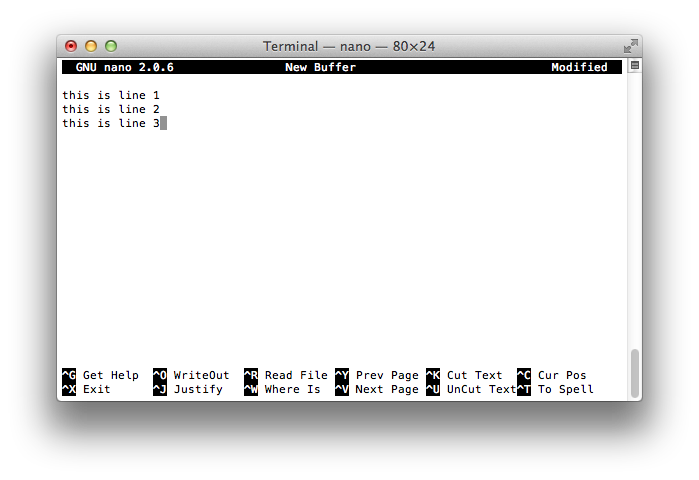
Type a few lines of text into the editor. We will use these to practice with. Editing functions in pico are invoked by pressing the Control key (marked as 'Ctrl' on some keyboards) and another key simultaneously. The bottom two lines of the editor window show a menu of editing commands ('^R', for example, signifies pressing the 'Ctrl ' and 'R' keys simultaneously).
Let's try pico's primitive cut-and-paste function. Move to the second line of your text and press '^K'. The whole line should disappear. Now move to the end of your text and press '^U'. This pastes the line of text into the new location. Try searching for a word in your text with '^W'. To save your work without exiting, type '^O'. To exit, type '^X'. If you have any changes that haven't been saved, you will be prompted to do so before exiting.
pico does not have many of the advanced features that other editors such as vi and Emacs have (such as search and replace), but it is easy to use and certainly adequate for editing small files.

This work is licensed under a Creative Commons Attribution-NonCommercial-ShareAlike 4.0 International License.